We have better take care of our body in order not to burden our lover, family and society due to illness.
Sincerely Recommend Spooky2/MiraMate/Lifewave Frequency Health Care devices, we also has professional nurse to provide health care and nutrition advice (Inquiry Click Here).
Meningiomas are the most common type of primary brain tumor, and while the tumor is usually benign, it can still grow large enough to be life-threatening. Meningiomas are most common in people over the age of 35, and women are more likely. People with a certain genetic disorder may also be more likely to develop a meningioma. Previous radiation or trauma to the head may also be associated with tumor development. Generally, most meningiomas are removed surgically. If the tumor cannot be effectively treated with surgery, radiation therapy may be an option.
Welcome to the following youtube frequency videos which will help relieve headaches, facial numbness, nausea and vomiting, it is recommended to listen to it at least 2-3 times a day, keep the moderate volume at a comfortable level to prevent any hearing damage, make sure you have enough lemons Water or purified water to flush toxins from your body.
Follow the steps to create your own program and add it to your custom database.
step 1
Select File -> Create Program.
Step 2
It’s good to name your program something like “Cancer Throat Sweep XX” because it will show up when searching for “cancer”, “throat” and “sweep”.
Step 3 – Enter your frequency
Now let’s enter the frequency, eg: 20,180,200,300; you can also enter a very powerful command in this field along with your frequency, eg a list of commands: xxx-yyy (frequency sweep) – this is where you enter a sweep between two frequencies way – xxx for one frequency and yyy for another, if you want to scan in ascending order, enter the lower frequency first, then the hyphen (scan command), then the higher frequency, example: 100-200
For downward sweep, enter the higher frequency first, then the hyphen, then the lower frequency, example: 200-100
=xxx (custom dwell), for any frequency you can specify a different dwell time than the default you want to apply to the rest of the frequencies, just type the equal sign (dwell command) followed by the dwell time in seconds , example: 200=600
Wx (Waveform): After the frequency you want to use a different waveform, just type W followed by the waveform number as shown in the table below; eg: you want frequency 10 to use a square wave, 10 W2.
Gx (Gate): After the target frequency or command, type G followed by 1 to turn the gate on, G followed by 0 to turn it off, example: G1, G0
Ax (Amplitude Amplitude): After your target frequency or command, type A followed by the voltage you wish to use, example: A05
Ox (Offset Offset): After your target, for positive offset types, a capital O followed by the desired value as a percentage of amplitude instead of voltage. Lowercase o for negative offset types. Example: O00 if 0% offset is required. o20 if a -20% offset is required.
Px (Phase Angle): After your target, type P followed by the desired value.
Lx (Light Wavelength): Spooky2 allows you to directly input the light wavelength. Enter L followed by your wavelength in nanometers (nm). Spooky2 will automatically convert it to the highest harmonic frequency your generator is set to transmit. CL can be used as a constant for Out 2.
Fx (Factor): Specify your desired value for the frequency factor of Out 2.
Cx (Constant): This is the value of the frequency constant for Out 2.
Mx (MW Factor MW Factor): Insert M before molecular weight/molar mass to convert to frequency.
Bx (Base Pairs Factor): Insert a B before the base pair entry to convert to frequency.
Example: You have six frequencies – 100, 200, 300, 400, 450 and 600. You want 100 and 200 transmissions to have a default dwell time of 3 minutes, and 300 transmissions of 10 minutes, all using a square wave with an amplitude of 9 volts and an offset of 0. The frequency is: 100 W2 A09 O00, 200, 300=600.
Also, you want 400 to sweep to 450 with a sine wave in 30 minutes. The frequency is: 400-450=1800 W1.
Finally, you want the 600 again to use a square wave as the default dwell. You also need an amplitude of 5 volts and a positive offset of 2.5 volts (ie 50% of the amplitude). The frequency is: 600 W2 A05 O50.
Step 4 Dwell time.
This is the amount of time (in seconds) that you want to transmit each frequency in the group. If you’re not sure what this should be, 180 seconds is a good default. Note that you can specify a single frequency deviation from this default by entering a simple command.
Step 5 Program Description
You can add comments that will be included in the search and displayed in the Program Description pane. Don’t worry if you get a text error when entering a collection, you can edit it later by selecting the Edit Custom Database command from the Database menu. You also have the option to manually open your custom file in Notepad and edit it there. Then you can save your program. After the Spooky2 database reloads, you will see your new program.
Welcome to watch the following youtube video demonstration ->
Terrain Detox should be the first step in any spooky2 frequency healing, which is helpful and essential. Terrain Detox not only helps you get rid of fluke and parasite toxins, but also deeply detoxifies to get rid of any heavy metals or other substances. You can find Terrain Protocol in Spooky2 Preset, run it for 7 to 11 days before running other healing programs will have more effect. Running Terrain in remote mode with Spooky2 is the most convenient way, and it can run continuously 7×24.
If you have a generator, you can run Terrain in three ways:
remote mode
Plasma Mode/Remote Mode
Contact Mode/Remote Mode
If you have two generators, there are two ways to run Terrain with both generators:
Plasma Mode + Remote Mode
Contact Mode + Remote Mode
Note: Patients with renal insufficiency can choose the Terrain program with reduced power to reduce the workload of the kidneys.
Sometimes when you search for a program by typing a specific keyword in Spooky2, you may not find any results, at this point you will have to try different spellings as words may be spelled differently from British English to American English Different; typing partial keywords to search is usually more effective than full words; for example, “normal” will find “normalize”, and “stimulat” will find “stimulate”, “stimulatory”, and “stimulation”.
Also, search Wikipedia for the disease to see if it has another name; for example, if you search for Zika Fever in the Spooky2 software, there will be no results, but if you use Dengue Fever as a keyword, you will Find the relevant frequencies.
You can also look for the source of a health problem and then use the Spooky2 frequency to locate it alone; for example, the cause of most thyroid nodules is unknown, but iodine deficiency can cause thyroid nodules; chronic inflammation of the thyroid gland (Hashimoto’s disease) causes decreased thyroid activity and may also cause thyroid nodules; so, you can search for both iodine and Hashimoto for thyroid nodules.
Vitamins and minerals are essential nutrients to maintain our health, and they are involved in many unavoidable metabolic processes in the body. Different vitamins play their respective roles in the human body to keep the body healthy and strong. What’s more, minerals regulate various physiological functions of the body, and an adult needs at least 100 mg of macrominerals and less than 15 mg of trace minerals per day to support the body’s needs.
Previously, we could only absorb enough vitamins and minerals each day through food and supplements. Thanks to our introduction of molecular weight frequencies, we are adding more and more vitamin and mineral frequencies to our database, and now you can also get these nutrients “for free” with Spooky2.
Spooky2 Multivitamin and Mineral Program
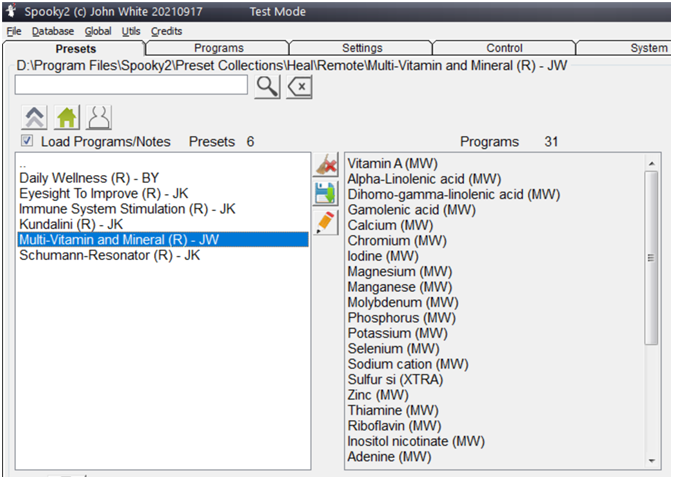
Multi-vitamin and Mineral (R) – JW Preset is a remote program of all essential micronutrient vitamins and minerals to meet your daily needs. The preset time is 4 hours from 1:00am to 5:00am so you can easily get these vitamins and minerals during your sleep.
To load the program into your -XM, open your Spooky2 software and select “Heal” under the “Preset” tab, then select the “Remote” remote, connect the Spooky2 Remote to the BN port of the Spooky2 Boost, and then , search and double click to select Multi-vitamin and Mineral (R) – JW Preset, click the “Control” tab at night and press “start”, after connecting to the computer, the preset will automatically start at 1:00 am . If you run this program in standalone mode with GX, but you need to manually click start every day and make sure not to loop it.
Frequently Asked Questions :
1. Does the Spooky2 Remote blink the red LED light when running a multivitamin and mineral preset? Whether or not the LED remote control light flashes depends on the number of frequencies. This preset contains very large frequency numbers, and according to how the remote works, the light does not seem to light up when the frequency numbers exceed 5MHz. So it’s perfectly normal for your remote lights to be “off” when running a multivitamin and mineral preset.
2. How does GX know the time and start the preset at 1:00am? The GX doesn’t know the time, it’s the Spooky2 software that is responsible for scheduling the presets or programs, if you want to start a preset at a specific time, you can connect your GX to a computer and use the scheduling feature in the Spooky2 software.