We have better take care of our body in order not to burden our lover, family and society due to illness.
Sincerely Recommend Spooky2/MiraMate/Lifewave Frequency Health Care devices, we also has professional nurse to provide health care and nutrition advice (Inquiry Click Here).
Bacterial infections in the body can lead to the formation of painful pus called abscesses. In general, abscesses are divided into two types – skin abscesses and internal abscesses. Skin abscesses can appear on the surface of the skin, and internal abscesses can occur within organs. A dental abscess is a common type of abscess that occurs when the mouth becomes infected and pus builds up under the tooth or gum, causing a dental abscess. It can cause tooth pain and discomfort while eating. If you get this disease, remember to consult your doctor and practice good oral hygiene habits. In addition, don’t forget to visit the dental office regularly to prevent gum cancer from happening.
Listening to the following sound frequencies will help heal damaged organs, kill bacteria in the body and relieve gum discomfort, it is recommended to listen at least 2-3 times a day, keep the moderate volume at a comfortable level to prevent any hearing damage, make sure You drink enough lemonade or plain water to flush out toxins from your body.
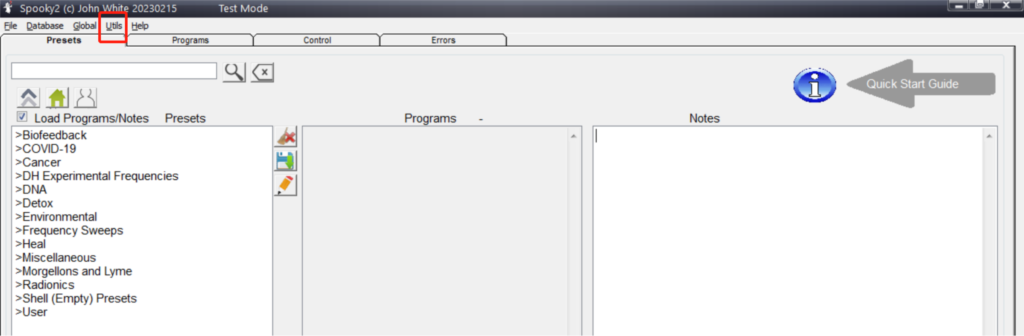
Spooky2 software has the world’s largest frequency database with multiple presets and over 60,000 programs designed to provide precise and beneficial frequencies for a variety of energy imbalances and ailments, so learning how to select and run presets and programs is essential for using Spooky2 very important. Presets are lists of programs with appropriate settings, built by the Spooky2 team or by you when saving a user preset. There are two types of presets, one is a factory preset that includes programs and settings, and the other is a shell (empty) preset that contains only settings. You can choose the factory preset and go directly to the Control tab to run it without any adjustments, but if you choose a shell (empty) shell preset, you need to select the program you want, then go to the Control tab run them. A program is a collection of frequencies related to a specific condition, in short, a preset can contain a program, but a program only contains frequencies.
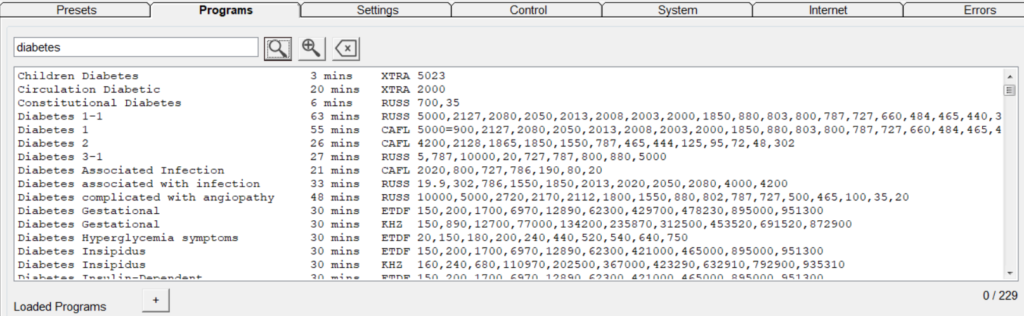
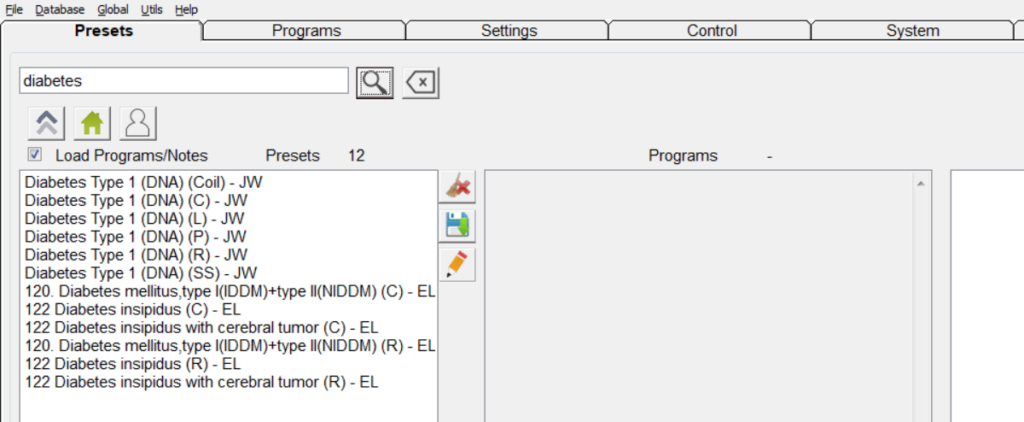
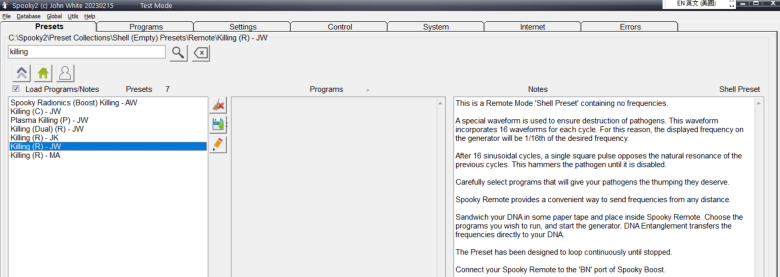
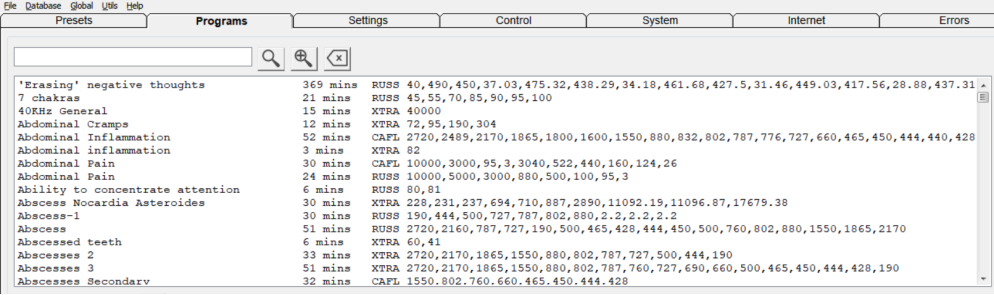
If you can find your situation in the Presets tab, or when running presets like terrain protocols or biofeedback scans, we recommend going straight to the factory presets, which are created by certified professionals, And easy to use. If you can’t find a condition in the Presets tab, you can select a shell preset (empty) and search for the program under the Programs tab by entering your condition name. With over 60,000 programs in the Spooky2 software database, you’re sure to find just the right one. Here is an example of running the shell preset via Spooky2 remote mode, first, connect the generator and remote properly, and second, open the Spooky2 software, click on “Utils”, and identify the generator. Third, select Shell (Empty) Presets > Remote > Killing (R)-JW, then, go to the “Programs” tab and enter keywords (name of your criteria) to search for the programs you need, double click on the programs to load them Go to your generator, using diabetes as an example: search for “diabetes”, then, go to the “Controls” tab, check “Override generator”, select your generator port, and click the “Start” button to begin.
Finally, in addition to the remote mode, you can also choose any other suitable mode to help you solve your health problems, such as TENS electric pad contact mode…etc.
Spooky2 is pleased to announce the launch of its newest mobile app to help you on your health and wellness journey: Frequency Healing! Frequency Heals Mobile App is an app that provides a series of audio specially created from healing frequencies to help relieve various diseases and health conditions. Spooky2 invites you to join in and download the “Frequency Heals” app today.
You can download it from the App Store or Google Play. Register in the app now and you will automatically receive a free 90-day trial.
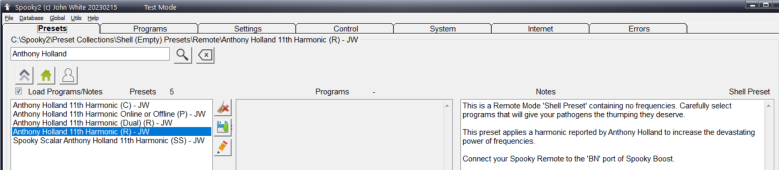
The Holland 11th Harmonic Preset by Spooky2 was developed by Dr. Anthony Holland, who demonstrated that when any frequency of 11th Harmonic is applied simultaneously, its healing effects can be enhanced. We can use this preset with our programs of choice, such as parasite detox programs, BFB results programs, etc.
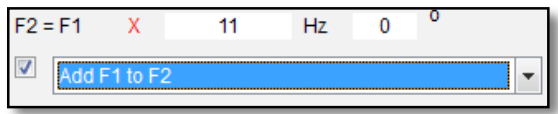
The first method for the Holland 11th harmonic setting is to use frequency addition, by entering “11” in the Hz field. Check the box on the left and select “Add F1 to F2” from the menu.
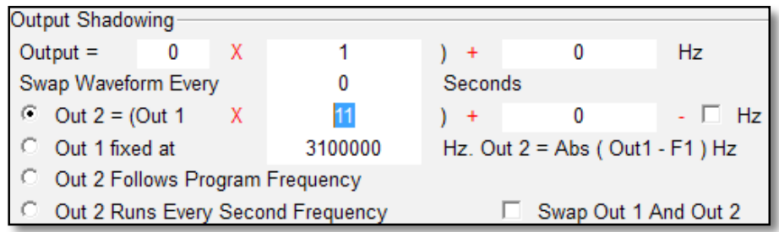
The second method of the Holland 11th harmonic setting is that frequencies can also be mixed, this uses Out 2 in a process called output “shadowing”, to use it you have to first select Follow Out 1, then set it up, set the Out The 1 Hz value is multiplied by a factor of 11 and combined with Spooky Boost for forward transmission. It’s called “Shadow” because it derives the output radio band frequency directly from the audio band frequency on Out 1. This method is used to create dynamic carriers for deep penetration.
Spooky2 has multiple killing presets, developed by various developers such as JW for John White, which work well for killing pathogens.
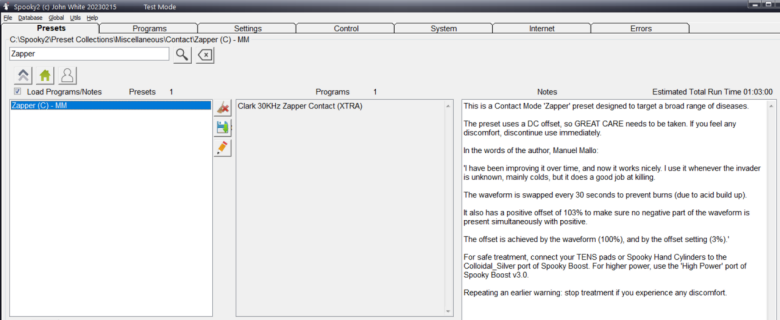
Spooky2’s Zapper preset was developed by Manuel Mallo, and it’s also great for killing.
Using the Holland 11th harmonic, klling, or zapper presets may give you different results, it’s hard to say which preset or setting will work best for your detox or klling, but you’d better try it yourself and find out The one that suits you best.
Spooky2 is a Rife frequency therapy system developed over the years by an international team of electronics engineers, technical designers, software developers and Rife practitioners, the Spooky2 system has many features, presets and programs are among them. Spooky2 presets are organized settings, when you select one, it will automatically load all the necessary settings in the software, for example, when running factory presets like Morgellons, you don’t need to select any programs, because they are already selected in the preset . “Shell Presets,” on the other hand, enable you to load any number of various settings in sequence and choose the frequency program that suits you. Here is an example of running a shell preset via Spooky2 remote mode:
First, connect the generator and remote control correctly.
Second, open the Spooky2 software, click on “Utils”, and identify the generator.
Then, go to the Programs tab and enter keywords (your criteria name) to search for the program you need. Double-click programs to load them into your generator. Take diabetes as an example:
Finally, go to the “Control” tab, check “Override Generator”, select your generator port, and click the “Start” button to get started.
Running a factory preset is similar to running a shell preset.
The Spooky2 program is a collection of frequencies related to specific conditions, a frequency set forms a program, and multiple programs form a sequence. The top field shows all programs in all databases for searching, when you want to select a program, double-click it, it will appear in the loader in the lower left corner, similarly, you can double-click a program in the loaded programs to delete unwanted program of.
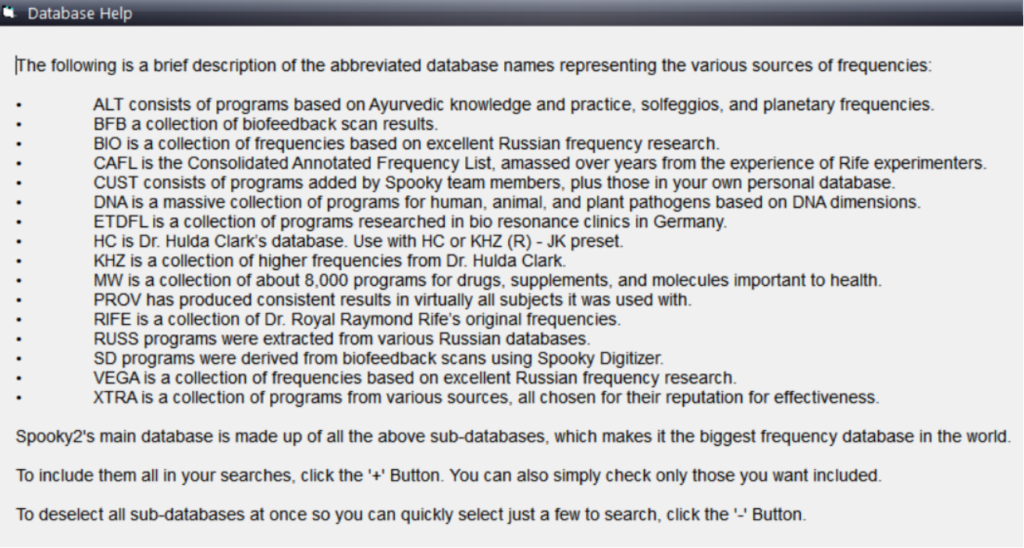
The list below represents the various sources of all the frequencies in the Spooky2 database, which is undoubtedly the largest frequency data in the world, there are many presets and over 60,0000 programs in the Spooky2 software, which you can download and browse for free. We must point out that the effectiveness of our procedure will depend on the accuracy of your diagnosis, so if you do not get any results after 2-3 days, you should switch to another procedure.
Notice:
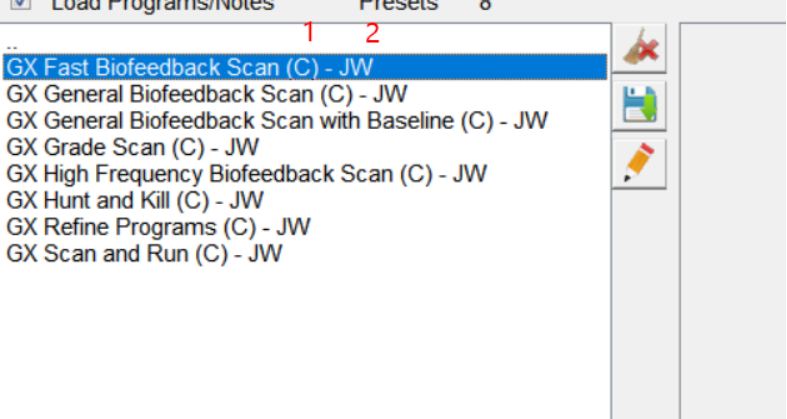
(C) means Spooky2-TENS pad Contact mode, (R) means Spooky2-Remote mode, and JW means John White, the inventor of Spooky2 and the person who created this preset. When you want to load a preset, click on it and you’ll notice the settings already programmed for you. While you are free to change these settings, we strongly recommend that you do not change any of the Spooky Central/Plasma presets until you are confident that you know what you are doing.